
Understanding and Resolving npm ERESOLVE Dependency Conflicts
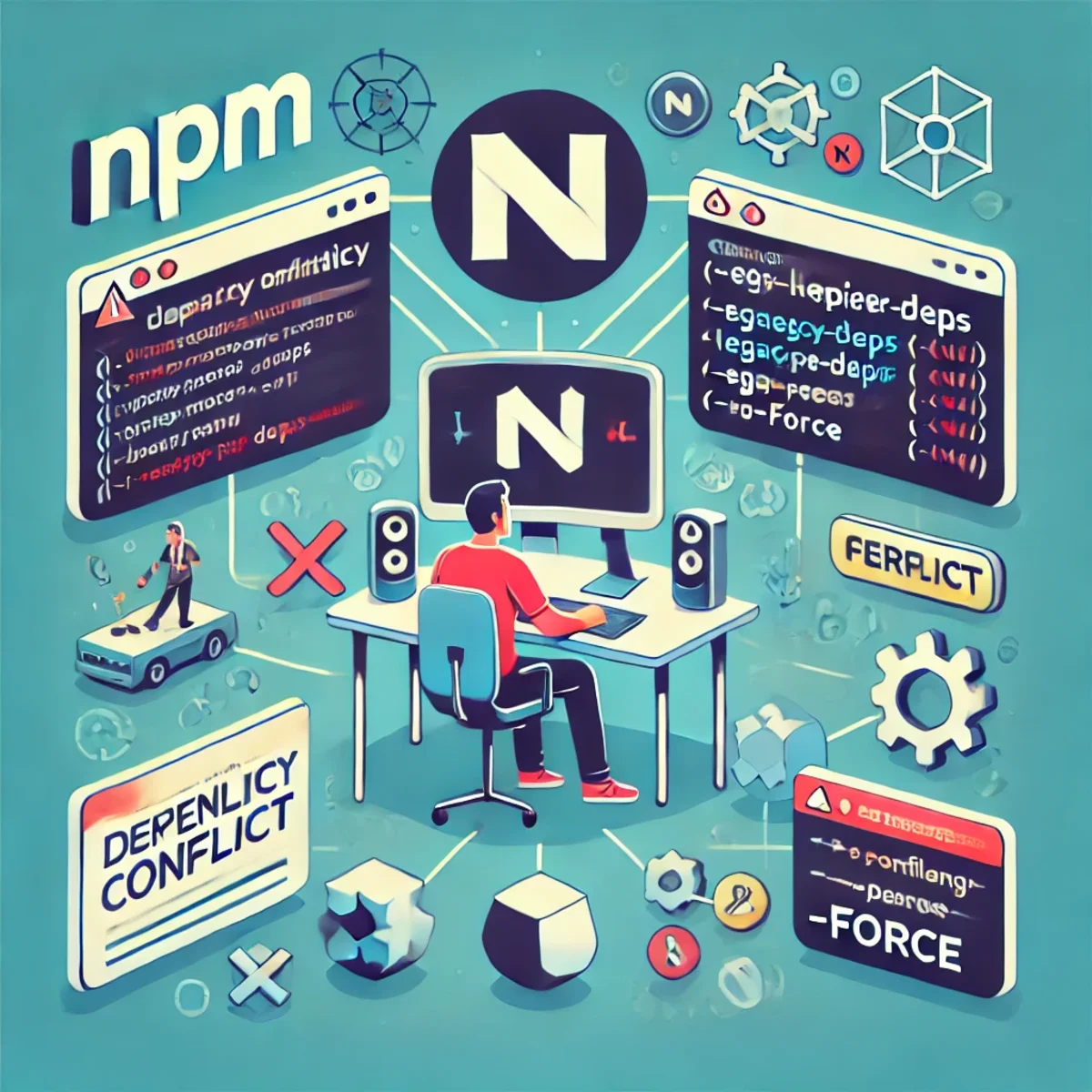
Understanding and Resolving npm ERESOLVE Dependency Conflicts
An npm ERESOLVE error means npm couldn't build a dependency tree that satisfies all version rules — most often because of peer dependencies. Since npm 7, peer dependencies are handled strictly during install, so conflicts that previously installed “anyway” now fail fast.
That strictness reduces runtime surprises, but it can block installs when one package expects older versions than your project.
Quick Triage: Find the Actual Conflict
Before you force anything, identify who requires what. These commands usually pinpoint the culprit in under a minute.
npm -v
node -v

# show dependency chain
npm ls @tensorflow/tfjs
npm ls react

# show peer dependency requirements
npm view @tensorflow-models/handpose peerDependencies

# explain why a version was chosen
npm explain @tensorflow/tfjs
Why Peer Dependency Conflicts Happen
Peer dependencies are compatibility contracts. A library says: “I don't ship React / TFJS myself — you must provide a compatible version.” Conflicts happen when two packages demand incompatible version ranges.
- Package A requires
@tensorflow/tfjs^3, but your project installs@tensorflow/tfjs@4. - A plugin requires
react@^17, while your app is onreact@18. - You mixed majors in a package family (e.g. tfjs core v4, backends still v3).
How to Fix npm ERESOLVE (Safest → Most Aggressive)
1) Align Versions (Best Long-Term Fix)
Keep one compatible major across the entire dependency family. This is the fix that survives CI, deployments, and future upgrades.
// package.json (example: align tfjs family on v3)
{
  "dependencies": {
    "@tensorflow/tfjs": "^3.21.0",
    "@tensorflow/tfjs-backend-webgl": "^3.21.0",
    "@tensorflow/tfjs-backend-cpu": "^3.21.0",
    "@tensorflow-models/handpose": "^0.0.7"
  }
}
rm -rf node_modules package-lock.json
npm install2) Use npm "overrides" (Controlled Forcing, npm 8+)
Use overrides when a transitive dependency pulls the wrong version. This is safer than --force, but you must test runtime behavior.
// package.json
{
"overrides": {
"@tensorflow/tfjs": "^4.0.0",
"@tensorflow/tfjs-backend-webgl": "^4.0.0",
"@tensorflow/tfjs-backend-cpu": "^4.0.0"
}
}rm -rf node_modules package-lock.json
npm install3) --legacy-peer-deps (Fast Unblock, Less Safety)
Bypasses strict peer resolution and installs anyway. Good for quick experiments — risky as a default in production.
npm install --legacy-peer-deps4) --force (Last Resort)
Forces an install even when npm knows the tree is inconsistent. Use only if you accept potential runtime breaks.
npm install --force5) Clean Install Checklist (Fixes Weird Lockfile States)
rm -rf node_modules package-lock.json
npm cache verify
npm installnpm vs pnpm vs Yarn: Practical Differences
All three can hit peer conflicts, but they differ in speed, node_modules strategy, and how quickly they expose "hidden" dependency mistakes.
npm (v7+): strict by default
- Pros: catches incompatible peer combos early; predictable CI.
- Cons: blocks installs more often; people reach for flags.
- Best for: teams that want strict correctness over convenience.
pnpm: fast, disk-efficient, stricter dependency access
pnpm uses a global content-addressable store and links packages. Installs are typically faster and use less disk. Its stricter layout can reveal missing direct dependencies earlier.
corepack enable
corepack prepare pnpm@latest --activate
pnpm installYarn: strong workspaces tooling, flexible resolutions
Yarn is popular in monorepos. Depending on Yarn version/config it can feel more forgiving, but the big win is workspaces and its ability to pin versions via resolutions.
corepack enable
corepack prepare yarn@stable --activate
yarn install
# package.json (Yarn) -> "resolutions": { "react": "18.2.0" }Conclusion
For production: prefer aligning versions or controlled overrides. Use --legacy-peer-deps to unblock quickly, and reserve --force for last resort. If installs are slow or the repo is large, pnpm is often a strong upgrade. If workspaces and strict pinning matter, Yarn is a good fit.
Copy/Paste Snippets
# safest: align versions
rm -rf node_modules package-lock.json
npm install
# controlled: overrides
# package.json -> "overrides": { "pkg": "version" }
# quick unblock
npm install --legacy-peer-deps
# last resort
npm install --forceRelated Articles

Google I/O 2026: Agentic Products Across Search, Workspace, and Shopping
Google I/O 2026 showed that agentic AI is moving beyond model demos and developer tools into everyday product surfaces. This article breaks down how Search, Workspace, Gemini Spark, and Universal Cart point toward a new product model where Google agents help users research, work, shop, and act across connected services.
Emerging Linux Trends in 2026: Shaping the Future of Server Infrastructure
Explore the key Linux trends of 2026, from Kubernetes dominance and immutable distributions to AI integration and eBPF security.
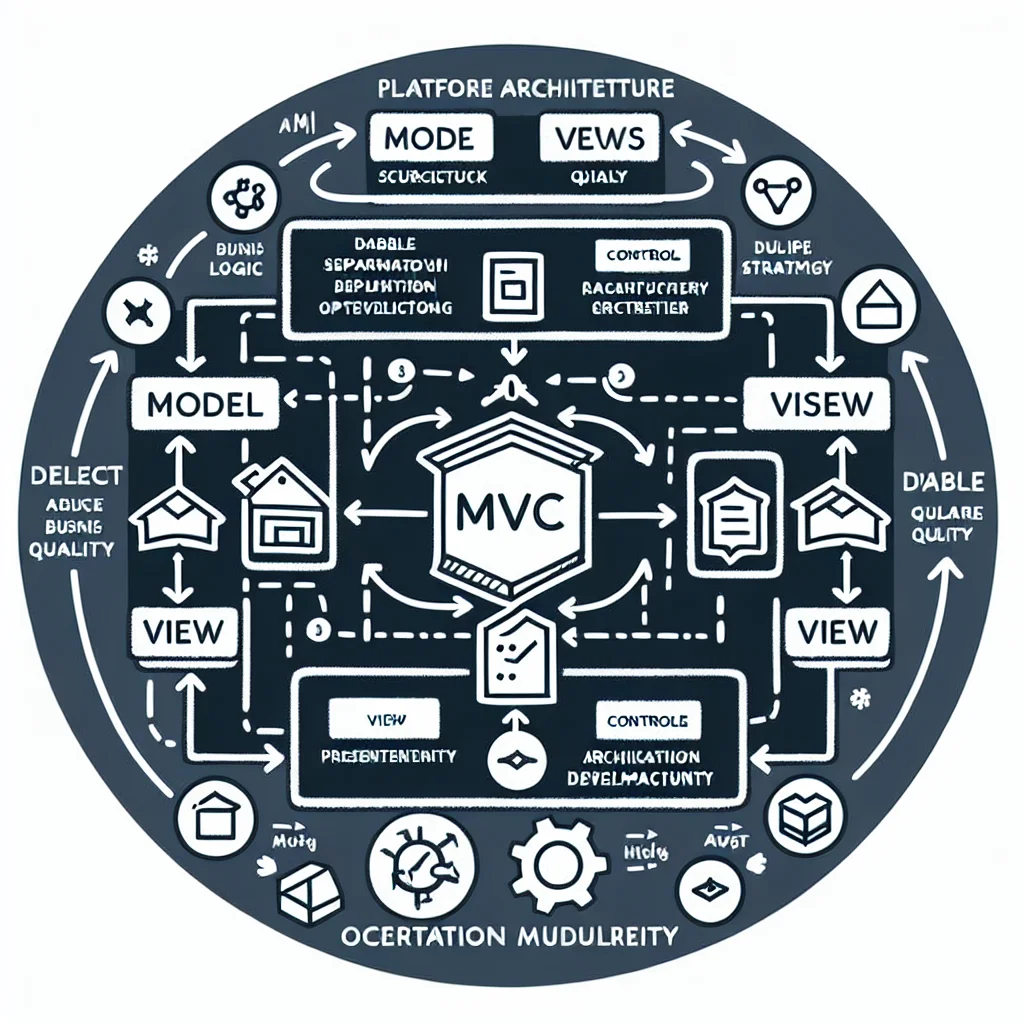
Model-View-Controller (MVC): The Structural Backbone of Modern Web Applications
Model-View-Controller, usually shortened to MVC, remains one of the most durable architectural patterns in software development. It gives teams a practical way to separate business logic, presentation, and user interaction so applications stay easier to build, extend, test, and maintain. This article explains what MVC is, why it still matters, where it fits in today’s web stacks, and how it connects to broader platform architecture, delivery quality, migration strategy, and operational maturity.
force-install-package-in-virtualenv

Google I/O 2026: Android XR, Intelligent Eyewear, and the Ambient AI Interface
Google I/O 2026 pushed Android XR and intelligent eyewear from concept toward a real platform direction. This article breaks down audio glasses, display glasses, Gemini-powered context awareness, developer implications, privacy risks, and why wearable AI is less about replacing phones and more about creating ambient assistance surfaces.
How to Install PHP 8.3 on Ubuntu 22.04
Up-to-date guide on installing PHP 8.3 on Ubuntu 22.04, including Apache and Nginx (PHP-FPM) integration, extensions, and running multiple PHP versions side by side.
Search Engine Optimization: The reliable workflow for Top-Rankings
Detailed analysis of search engine optimization (SEO), its technical foundations, the role of web crawlers, and the strategic steps to achieve organic top rankings.
Canonical Architecture, URL Design, Resolver Logic, API & Scalability Specification
Geo-based discovery architecture for multi-tenant portals. Defines canonical URLs, resolver logic, caching strategy, and a geo read-model without CMS coupling or database refactoring. Designed for SEO stability, scalability, and future extensions like booking and maps.
HEIC to JPG Conversion: Why You Should Consider It and How It Works
HEIC offers modern image compression and high quality, but JPG remains the most compatible format. This guide explains when and how to convert HEIC to JPG using Linux tools and automation.

Ultimate Guide to Acceptance Criteria for LLM Adoption in Enterprise Playbooks
Master the art of defining precise acceptance criteria to ensure successful LLM integration in your enterprise environment. This comprehensive guide provides actionable frameworks, examples, and best practices tailored for playbook-driven adoption.

Quectel RM500U-EA in the ZBT Z8102AX: 5G Bands, o2 Germany and Real-World Signal Behavior
The ZBT Z8102AX uses a Quectel RM500U-EA modem for 4G and 5G connectivity. In the first practical test, the router connected successfully to o2 Germany with LTE Band 3 and NR n28. The modem works, but deeper diagnostics such as RSRP, RSRQ, SINR, band locking and cell behavior still need proper testing.
ComfyUI on Fedora 43: Two Virtual Environments + One-Click Start (March 2026)
Goal: Keep two Python venvs (e.g., 3.12 + 3.14) for compatibility, but start ComfyUI automatically with a clean, lightweight setup.