
Mastering the Command Line: A Comprehensive Guide to the Find Command
Introduction to the Find Command
In the landscape of Unix-like operating systems, efficient file management is a cornerstone of system administration and development. Among the vast array of utilities available in the shell, the find command stands out as one of the most powerful and versatile tools. Unlike simple search tools that might rely on pre-built databases, the find utility performs a real-time traversal of the directory tree, allowing users to locate files and directories based on a wide spectrum of attributes. Whether you are a system administrator auditing disk usage or a developer looking for specific configuration files, mastering this command is essential.
The utility goes beyond merely listing filenames. It serves as a complex filter that can evaluate file permissions, ownership, modification timestamps, and size. Furthermore, it possesses the capability to execute subsequent commands on the results it generates, transforming it from a passive search tool into an active engine for batch processing and system maintenance. This article provides an extended look at the find command, detailing its technical operations, benefits, and practical applications.
Overview
The find command is part of the GNU Findutils package on most Linux distributions. Its primary function is to search for files in a directory hierarchy. The basic syntax differs slightly from other standard commands because it relies on a structure of path, expression, and action. The command initiates a search starting from a specified point in the file system and descends recursively through subdirectories, evaluating each file against the provided criteria.
The fundamental structure is: find [path] [options] [expression]. If no path is specified, it defaults to the current working directory. If no expression is provided, it defaults to printing the path of every file found. The power of the command lies in its ability to combine multiple expressions using logical operators, allowing for highly specific search queries that can pinpoint files buried deep within a complex file system structure.
- Real-time Accuracy: Unlike the locate command, which relies on a periodically updated database, find scans the actual file system, ensuring results reflect the current state of the drive.
- Granular Control: Users can search based on metadata such as inode number, permissions, user ownership, group ownership, and timestamps.
- Automated Actions: The utility can execute commands like delete, move, or change permission on every file that matches the search criteria without needing a separate loop script.
- Logical Operators: Complex searches can be constructed using AND, OR, and NOT logic to filter results precisely.
- Flexibility: It supports searching by file type, distinguishing between regular files, directories, symbolic links, and block devices.
Technical Details
Understanding the technical parameters of the find command is crucial for constructing effective queries. The command evaluates tests for every file encountered. These tests return a true or false value, determining whether the file is included in the output or passed to the next action. One of the most common tests is -name, which filters files by their filename using shell pattern matching. For case-insensitive searches, the -iname option is utilized.
Time-based searches are another technical strength of this utility. It tracks three distinct timestamps: access time (atime), modification time (mtime), and change time (ctime). Access time refers to the last time the file content was read. Modification time refers to the last time the file content was written. Change time refers to the last time the file's metadata (such as permissions or ownership) was altered. These parameters accept numerical values representing days, often using plus (+) or minus (-) signs to indicate 'greater than' or 'less than' logic.
Size-based filtering allows administrators to manage disk space effectively. The -size option accepts various suffixes: 'c' for bytes, 'k' for kilobytes, 'M' for megabytes, and 'G' for gigabytes. For example, searching for files larger than a specific threshold aids in identifying logs or artifacts consuming excessive storage. Additionally, the -type option is fundamental for distinguishing between directories (d), files (f), and symbolic links (l), ensuring that operations intended for files do not accidentally affect directory structures.
Use Cases and Applications
The practical applications of the find command are extensive. Below are detailed examples illustrating how to leverage this tool for common system administration tasks.
Searching by Name and Extension— Basic Usage
To locate a specific configuration file within the /etc directory, one would use the command: find /etc -name 'nginx.conf'. This scans the /etc directory and its subdirectories for the exact filename. To find all files ending with a specific extension, such as Python scripts, the command becomes: find /home/user/projects -name '*.py'. The quotes around the pattern are necessary to prevent the shell from expanding the wildcard before the find command receives it.
Cleaning Up Large Log Files— Size and Modification Time
System maintenance often involves clearing out old, large log files. To find files in /var/log that are larger than 100 Megabytes and have not been modified in the last 30 days, the command combines two tests: find /var/log -type f -size +100M -mtime +30. This ensures that only files (not directories) meeting both size and age criteria are identified.
Executing Commands on Results— Advanced Automation
Perhaps the most powerful feature is the -exec option. This allows the user to run a command on every file found. For instance, to find all files with the permission set 777 (readable, writable, and executable by everyone) and change them to 644 (standard secure permissions), one would use: find /var/www/html -type f -perm 777 -exec chmod 644 {} \;. In this syntax, the curly braces {} are a placeholder for the current file name being processed, and the escaped semicolon \; signals the end of the command execution.
Fazit
The find command is an indispensable utility for anyone working within a command-line environment. Its ability to combine complex search criteria based on metadata, coupled with the power to execute batch operations, makes it superior to simple file browsers or basic search tools. While the syntax requires a learning curve—particularly regarding the handling of logical operators and the exec argument—the efficiency gains in file management and system auditing are substantial. By mastering the technical details and applying the examples provided, users can navigate and manipulate even the most complex file systems with precision and confidence.
Related Articles

Search Engine Optimization: The reliable workflow for Top-Rankings
Detailed analysis of search engine optimization (SEO), its technical foundations, the role of web crawlers, and the strategic steps to achieve organic top rankings.

Qwen 3.6 in Production: Release Runbook, AI Rollback, and LLMOps Versioning
Qwen 3.6 is not just another model upgrade. It is a release event, a rollback scenario, and a versioning problem at the same time. This article explains how Qwen 3.6 should be handled in production through LLMOps discipline, prompt and model traceability, controlled rollout, and evidence-based rollback readiness.

How to Install PHP 8.3 on Ubuntu 22.04
Up-to-date guide on installing PHP 8.3 on Ubuntu 22.04, including Apache and Nginx (PHP-FPM) integration, extensions, and running multiple PHP versions side by side.
linux-server-webserver-git-rechteverwaltung

Streamlining Code Quality: Testing with ESLint and Prettier
This article details the integration of ESLint and Prettier into modern development and testing workflows, focusing on practical implementation for consistent code quality and style.

Database Marketing: A Modern Approach to Customer Relationships
Database marketing is essential for modern customer relationship management. Learn how strategic data use, technical expertise, and innovation drive personalized customer interactions and sustainable growth.
New Qwen 3.5-Plus: Open-source AI is getting serious now
Discover the groundbreaking features and benefits of Alibaba's Qwen 3.5-Plus, a revolutionary open-source AI for developers.

Emerging Linux Trends in 2026: Shaping the Future of Server Infrastructure
Explore the key Linux trends of 2026, from Kubernetes dominance and immutable distributions to AI integration and eBPF security.
PostgreSQL 14 Ubuntu Server 23.04
PostgreSQL 14 Ubuntu Server 23.04
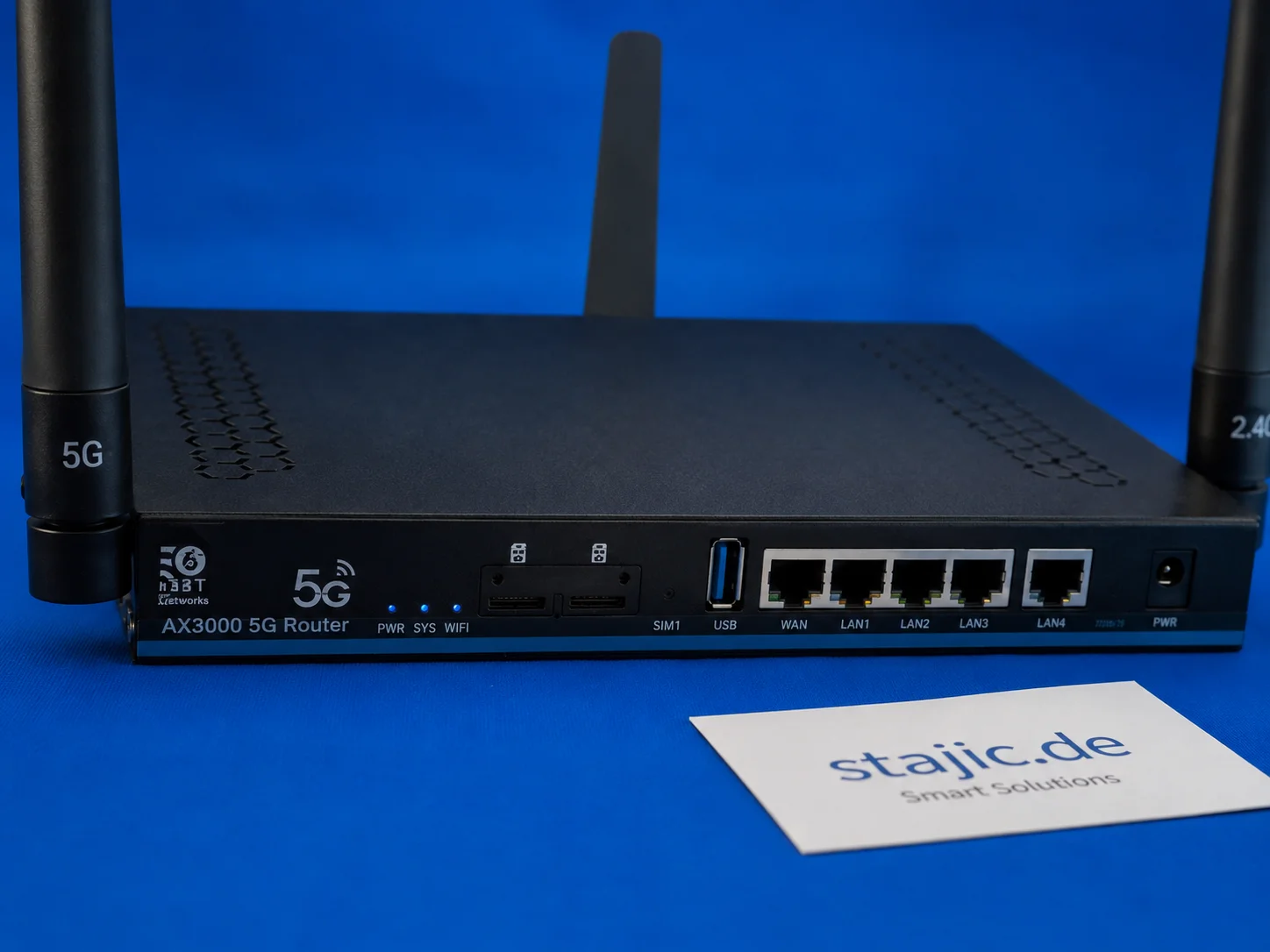
Quectel RM500U-EA in the ZBT Z8102AX: 5G Bands, o2 Germany and Real-World Signal Behavior
The ZBT Z8102AX uses a Quectel RM500U-EA modem for 4G and 5G connectivity. In the first practical test, the router connected successfully to o2 Germany with LTE Band 3 and NR n28. The modem works, but deeper diagnostics such as RSRP, RSRQ, SINR, band locking and cell behavior still need proper testing.

Understanding and Resolving npm ERESOLVE Dependency Conflicts
Resolve npm ERESOLVE peer dependency conflicts the right way: identify the real mismatch, align versions, use overrides safely, and know when pnpm or Yarn is a better fit.

Comprehensive Metrics Guide for Delivery and Change Management
This guide provides a detailed overview of essential metrics for enterprise delivery and change management, helping teams measure performance, optimize processes, and drive continuous improvement. Discover key indicators, calculation methods, and best practices to align your metrics with business outcomes.