
Convert MOV to MP4 Using FFmpeg: A Simple Guide
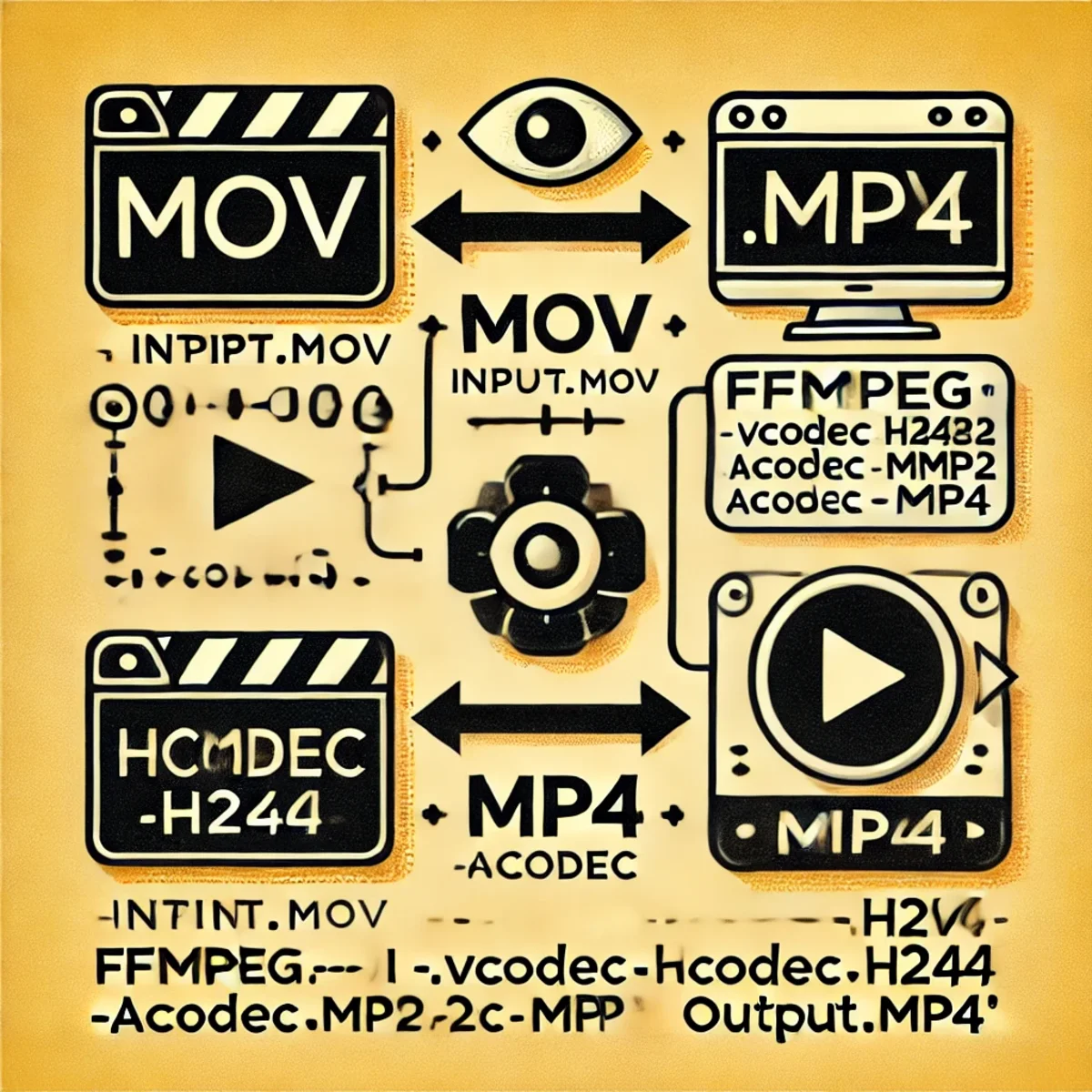
Convert MOV to MP4 Using FFmpeg: A Complete Technical Guide
If you work with video files, you will often encounter the MOV format, especially when dealing with content recorded on Apple devices. While MOV is powerful and flexible, MP4 is the industry standard for distribution, streaming, and cross-platform compatibility. FFmpeg provides a fast, scriptable, and production-ready way to convert MOV files to MP4.
This guide explains how to convert MOV to MP4 using FFmpeg, how the command works internally, and how to handle single files as well as batch conversions in a professional environment.
Why Convert MOV to MP4?
Although MOV is a capable container format, it is not universally supported outside of Apple ecosystems. MP4, on the other hand, is supported by almost every operating system, browser, device, and streaming platform.
Key reasons to convert MOV to MP4 include better cross-platform compatibility, smaller file sizes with modern codecs, and improved performance when streaming or embedding videos on the web.
Installing FFmpeg on Linux
FFmpeg is available in the official repositories of most Linux distributions. On Ubuntu and Debian-based systems, installation is straightforward.
sudo apt update
sudo apt install ffmpeg
After installation, verify that FFmpeg is available on your system:
ffmpeg -versionBasic MOV to MP4 Conversion
The simplest way to convert a MOV file to MP4 while maintaining high compatibility is to re-encode the video using the H.264 codec and a standard audio codec.
ffmpeg -i input.mov -vcodec h264 -acodec mp2 output.mp4Command Breakdown
The -i flag defines the input file. The -vcodec h264 option tells FFmpeg to encode the video stream using H.264, which provides excellent quality at reasonable bitrates. The -acodec mp2 option defines the audio codec, and output.mp4 specifies the target container format.
H.264 is widely supported by browsers, mobile devices, smart TVs, and streaming platforms, making it the safest choice for distribution.
Batch Conversion of Multiple MOV Files
When working with large collections of videos, manual conversion quickly becomes inefficient. FFmpeg can be combined with shell scripting to process entire directories.
for file in *.MOV; do
  ffmpeg -i "$file" -vcodec h264 -acodec mp2 "${file%.MOV}.mp4"
done
This loop processes every MOV file in the current directory and outputs a corresponding MP4 file with the same base name. This approach is commonly used in server environments, CI pipelines, and media processing workflows.
Optimizing for Quality and File Size
For better control over quality and compression, FFmpeg allows fine-tuning via constant rate factor (CRF). Lower CRF values increase quality, while higher values reduce file size.
ffmpeg -i input.mov -c:v libx264 -crf 23 -preset medium -c:a aac output.mp4This approach is recommended for production use, especially when preparing videos for websites, content platforms, or long-term storage.
Advantages of MP4 Over MOV
MP4 offers near-universal playback support, efficient compression, and excellent streaming behavior. Combined with H.264 encoding, it delivers a strong balance between quality and performance.
For online platforms such as YouTube, Vimeo, social media networks, and embedded web players, MP4 is typically the preferred and recommended format.
Potential Trade-Offs
Compared to MOV, MP4 usually relies on lossy compression. While quality loss is minimal with modern encoders, professional post-production workflows may still prefer MOV for editing and archiving.
A common workflow is to keep MOV files as masters and generate MP4 versions for distribution and playback.
Conclusion
FFmpeg provides a powerful and flexible solution for converting MOV to MP4. Whether you are processing a single video or automating large-scale media workflows, FFmpeg ensures high compatibility, efficient compression, and reliable performance across platforms.
By understanding the available codecs and parameters, you can tailor your conversions precisely to your technical and quality requirements.
Related Articles

Qwen 3.6 in Production: Release Runbook, AI Rollback, and LLMOps Versioning
Qwen 3.6 is not just another model upgrade. It is a release event, a rollback scenario, and a versioning problem at the same time. This article explains how Qwen 3.6 should be handled in production through LLMOps discipline, prompt and model traceability, controlled rollout, and evidence-based rollback readiness.

The Prompt Is Part of the Bias: How AI Framing Shapes Reasoning
Prompt wording is not neutral. Explore how framing, assumptions, instruction-following and sycophancy can shape AI reasoning—and why reliable conclusions require testing beyond the original prompt.

Google I/O 2026: Android XR, Intelligent Eyewear, and the Ambient AI Interface
Google I/O 2026 pushed Android XR and intelligent eyewear from concept toward a real platform direction. This article breaks down audio glasses, display glasses, Gemini-powered context awareness, developer implications, privacy risks, and why wearable AI is less about replacing phones and more about creating ambient assistance surfaces.
Comprehensive Guide to Evaluation Harness: Mastering LLM Performance Evaluation
This guide provides a detailed walkthrough of Evaluation Harness, an essential framework for rigorously assessing large language model (LLM) capabilities in enterprise LLMOps pipelines. Learn setup, best practices, and advanced techniques to ensure reliable model benchmarking and optimization.
Snap Packages: Why They Fall Short for Advanced Tools like DBeaver
Snap packages introduce restrictive sandboxing that breaks advanced workflows. This article explains why DBeaver struggles with SSH tunneling under Snap and why Flatpak or native packages are better alternatives.
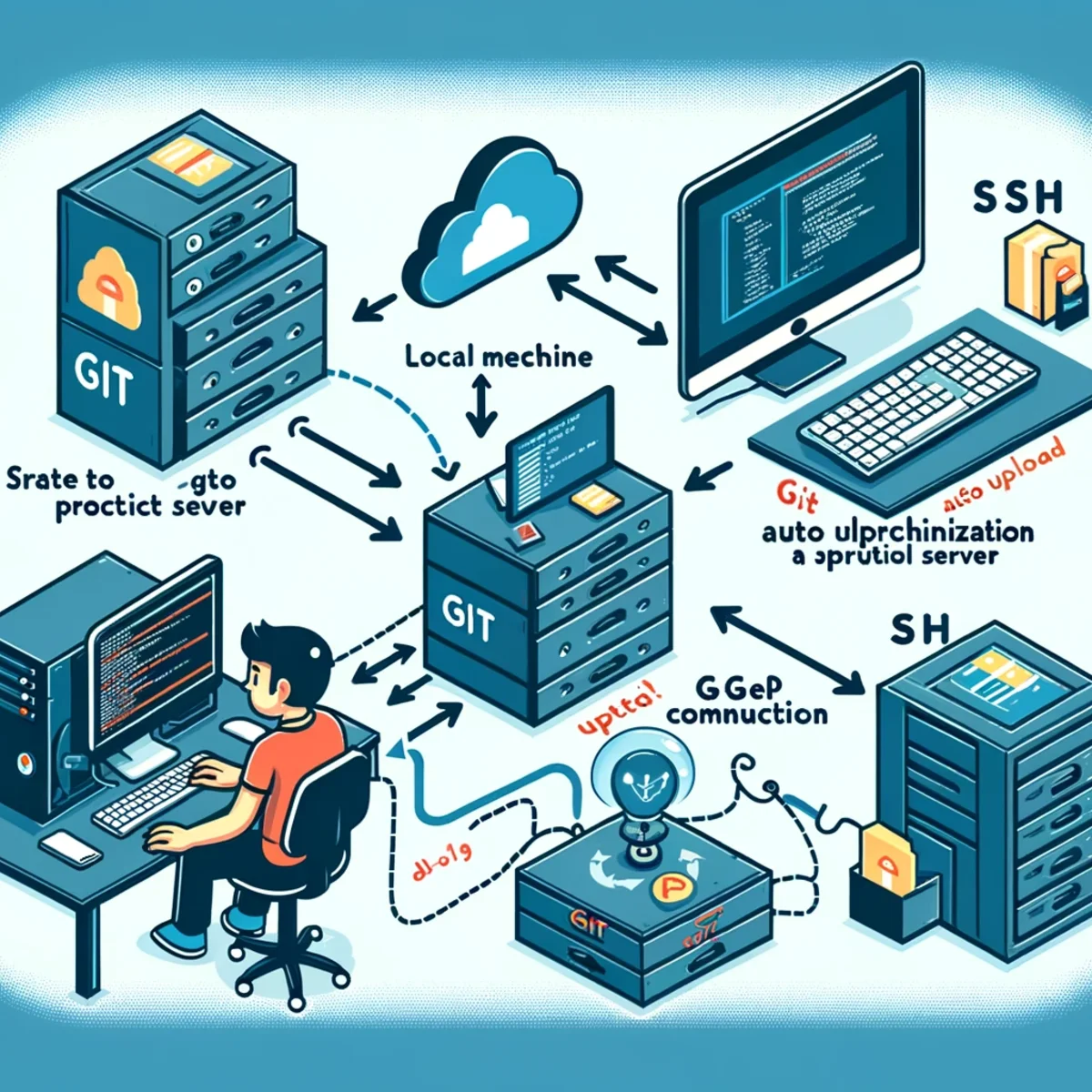
git-with-automatic-upload-and-synchronization-to-a-production-server

From Research Protocol to a General AI Reasoning Framework
A methodology developed for rigorous AI-assisted research can be generalized far beyond research itself. By separating evidence from assumptions, testing competing hypotheses, controlling prompt framing, searching for counter-evidence and applying domain-specific validators, the same reasoning architecture can improve debugging, software design, strategy, technical analysis and AI-assisted decision support.

What Should an AI Agent Remember, Forget, Recompute or Retrieve Again?
Long-running agents should not remember everything. This article provides a practical lifecycle model for deciding what belongs in durable memory, what should be retrieved again, what is safer to recompute, and what should expire or be superseded.
HEIC to JPG Conversion: Why You Should Consider It and How It Works
HEIC offers modern image compression and high quality, but JPG remains the most compatible format. This guide explains when and how to convert HEIC to JPG using Linux tools and automation.

Ollama Is Not the Product: Building Production-Ready Open-LLM Applications
Running a local model with Ollama is easy. Building a production-ready Open-LLM application is harder: it requires RAG, access control, provider abstraction, evaluation, logging, deployment discipline and a controlled application layer around the model.

Laravel 12 Custom CMS with Filament 3: The Expert Workflow
A detailed look at the synergies between Laravel 12 and Filament 3 for creating customized Content Management Systems. Experts analyze the innovative workflow, advantages, disadvantages, and the challenge of the Jetstream workflow.

Beyond Prompt Engineering: A Methodology for More Reliable AI Reasoning
Large language models do not necessarily fail because they lack reasoning capability. They often fail because the reasoning process is not sufficiently constrained, challenged, or verified. This article presents a domain-independent methodology that turns prompting into a structured epistemic process: separating facts from assumptions, generating competing hypotheses, testing counter-evidence, applying falsification, and checking whether conclusions remain stable under alternative framings. The goal is not to make the model “agree less,” but to make its conclusions less dependent on the user’s initial framing.