
Convert MOV to MP4 Using FFmpeg: A Simple Guide

Convert MOV to MP4 Using FFmpeg: A Complete Technical Guide
If you work with video files, you will often encounter the MOV format, especially when dealing with content recorded on Apple devices. While MOV is powerful and flexible, MP4 is the industry standard for distribution, streaming, and cross-platform compatibility. FFmpeg provides a fast, scriptable, and production-ready way to convert MOV files to MP4.
This guide explains how to convert MOV to MP4 using FFmpeg, how the command works internally, and how to handle single files as well as batch conversions in a professional environment.
Why Convert MOV to MP4?
Although MOV is a capable container format, it is not universally supported outside of Apple ecosystems. MP4, on the other hand, is supported by almost every operating system, browser, device, and streaming platform.
Key reasons to convert MOV to MP4 include better cross-platform compatibility, smaller file sizes with modern codecs, and improved performance when streaming or embedding videos on the web.
Installing FFmpeg on Linux
FFmpeg is available in the official repositories of most Linux distributions. On Ubuntu and Debian-based systems, installation is straightforward.
sudo apt update
sudo apt install ffmpeg
After installation, verify that FFmpeg is available on your system:
ffmpeg -versionBasic MOV to MP4 Conversion
The simplest way to convert a MOV file to MP4 while maintaining high compatibility is to re-encode the video using the H.264 codec and a standard audio codec.
ffmpeg -i input.mov -vcodec h264 -acodec mp2 output.mp4Command Breakdown
The -i flag defines the input file. The -vcodec h264 option tells FFmpeg to encode the video stream using H.264, which provides excellent quality at reasonable bitrates. The -acodec mp2 option defines the audio codec, and output.mp4 specifies the target container format.
H.264 is widely supported by browsers, mobile devices, smart TVs, and streaming platforms, making it the safest choice for distribution.
Batch Conversion of Multiple MOV Files
When working with large collections of videos, manual conversion quickly becomes inefficient. FFmpeg can be combined with shell scripting to process entire directories.
for file in *.MOV; do
  ffmpeg -i "$file" -vcodec h264 -acodec mp2 "${file%.MOV}.mp4"
done
This loop processes every MOV file in the current directory and outputs a corresponding MP4 file with the same base name. This approach is commonly used in server environments, CI pipelines, and media processing workflows.
Optimizing for Quality and File Size
For better control over quality and compression, FFmpeg allows fine-tuning via constant rate factor (CRF). Lower CRF values increase quality, while higher values reduce file size.
ffmpeg -i input.mov -c:v libx264 -crf 23 -preset medium -c:a aac output.mp4This approach is recommended for production use, especially when preparing videos for websites, content platforms, or long-term storage.
Advantages of MP4 Over MOV
MP4 offers near-universal playback support, efficient compression, and excellent streaming behavior. Combined with H.264 encoding, it delivers a strong balance between quality and performance.
For online platforms such as YouTube, Vimeo, social media networks, and embedded web players, MP4 is typically the preferred and recommended format.
Potential Trade-Offs
Compared to MOV, MP4 usually relies on lossy compression. While quality loss is minimal with modern encoders, professional post-production workflows may still prefer MOV for editing and archiving.
A common workflow is to keep MOV files as masters and generate MP4 versions for distribution and playback.
Conclusion
FFmpeg provides a powerful and flexible solution for converting MOV to MP4. Whether you are processing a single video or automating large-scale media workflows, FFmpeg ensures high compatibility, efficient compression, and reliable performance across platforms.
By understanding the available codecs and parameters, you can tailor your conversions precisely to your technical and quality requirements.
Related Articles
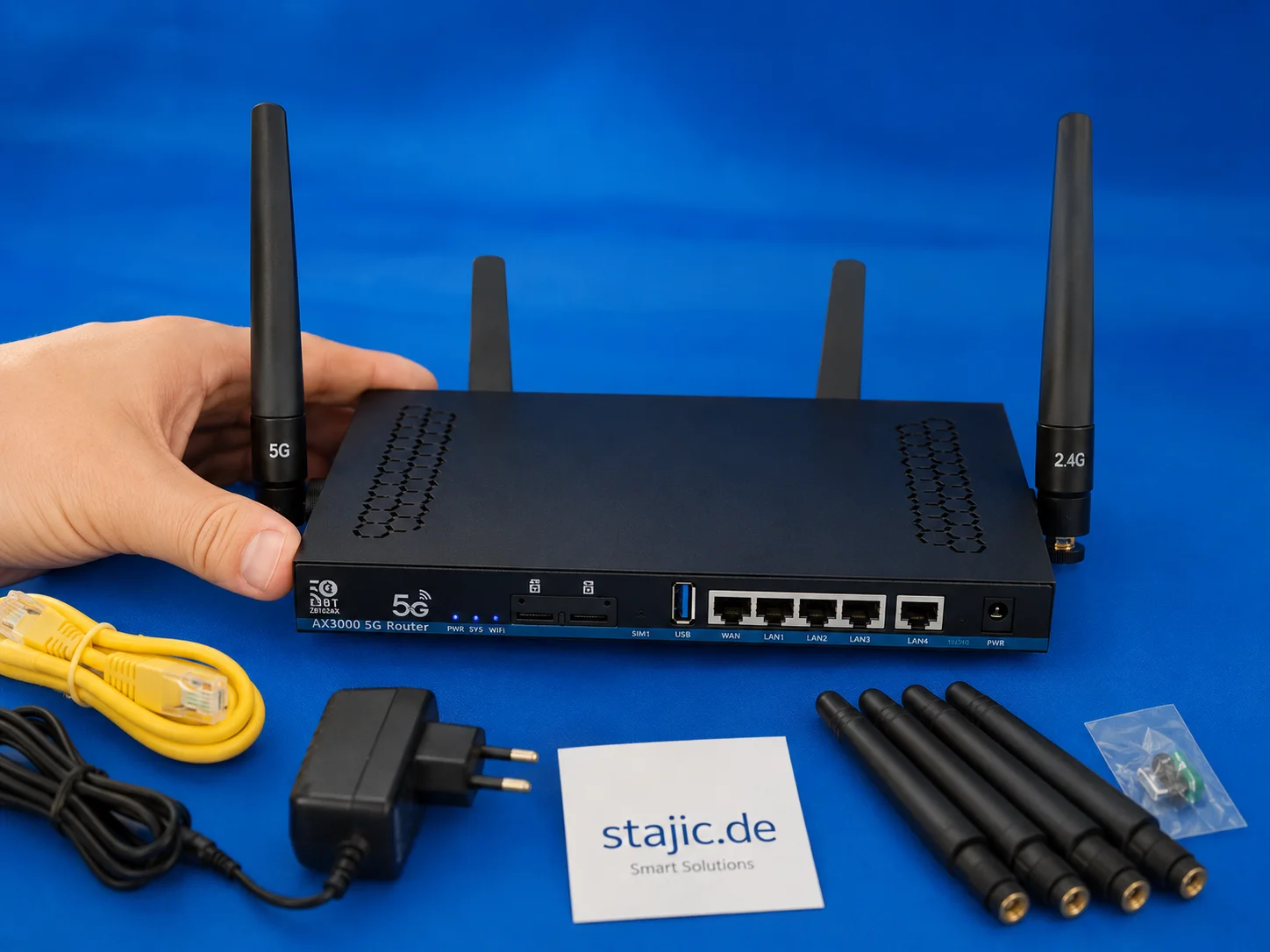
下一代OpenWrt 5G路由器:为何Wi-Fi 7、更强CPU与更优固件至关重要
ZBT Z8102AX 是一个有用的初步样品,但下一步应该更强:Wi-Fi 7、更强大的四核平台、更清晰的固件、改进的包装以及更稳定的定价策略。目标不仅仅是另一款5G路由器,而是一款配置更优、基于OpenWrt的准专业级设备。

Database Marketing – Modern Approach for Customer Relationships
Modern overview of database marketing: from data strategy and technical architecture to automation, GDPR and best practices for sustainable customer relationships.

Enterprise Start Here: Your Gateway to Operational Excellence
New to our enterprise platform? This guide provides a structured onboarding path, from foundational reference models to actionable playbooks, runbooks, and assessments designed for seamless implementation.

Snap 软件包:为何对 DBeaver 等高级工具力不从心
Snap包引入了限制性沙盒机制,这会破坏高级工作流程。本文解释了为何DBeaver在Snap环境下难以实现SSH隧道功能,以及为何Flatpak或原生软件包是更优的替代方案。
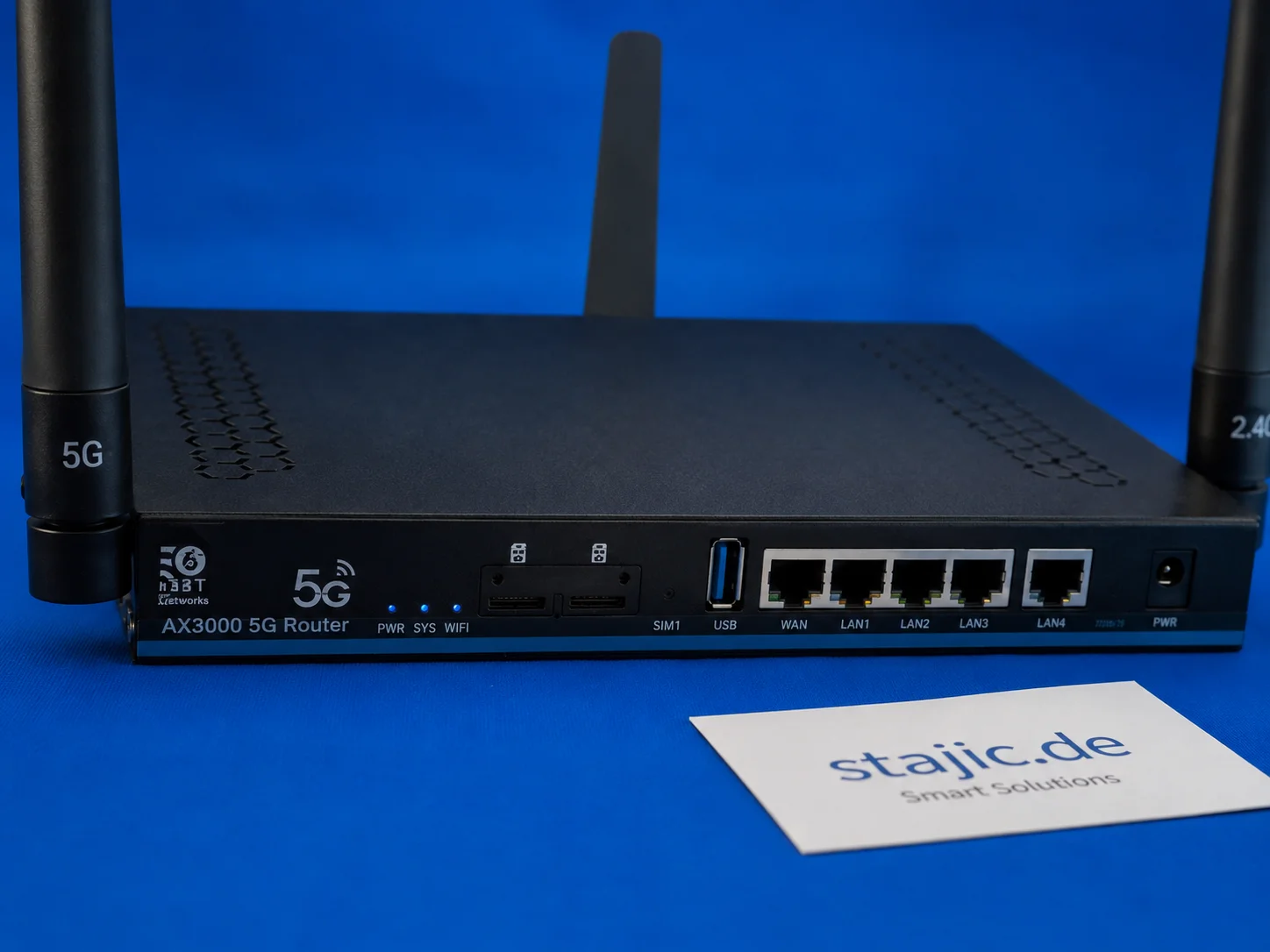
Quectel RM500U-EA在ZBT Z8102AX中:5G频段、o2德国及实际信号表现
ZBT Z8102AX 使用移远 RM500U-EA 调制解调器实现 4G 和 5G 连接。在首次实际测试中,该路由器成功连接至德国 o2 网络,使用 LTE Band 3 和 NR n28 频段。调制解调器工作正常,但更深层次的诊断功能如 RSRP、RSRQ、SINR、频段锁定及小区行为仍需进一步测试。
ZBT Z8102AX 5G OpenWrt路由器评测:双SIM卡、RM500U-EA及真实评估
ZBT Z8102AX是一款独特的5G路由器,采用OpenWrt基础系统、双SIM卡设计以及Quectel RM500U-EA调制解调器。在测试中,它在灵活性、接口和移动连接方面展现出明显优势,但也暴露出厂商定制版OpenWrt固件的典型缺陷。

PostfixAdmin:企业级Postfix邮件系统管理平台 —— 2026年版
PostfixAdmin是一款以数据库为核心的邮件系统管理界面,专为专业级Postfix邮件系统设计。它并非隐藏复杂性,而是提供对域名、邮箱、别名及发件人权限的精准控制。本文将阐述为何PostfixAdmin在2026年仍是值得信赖的企业级解决方案,以及它如何融入注重安全性的现代邮件基础设施体系。

交付与变更管理综合指标指南
本指南详细概述了企业交付与变革管理的关键指标,帮助团队衡量绩效、优化流程并推动持续改进。探索关键指标、计算方法及最佳实践,使您的指标与业务成果保持一致。
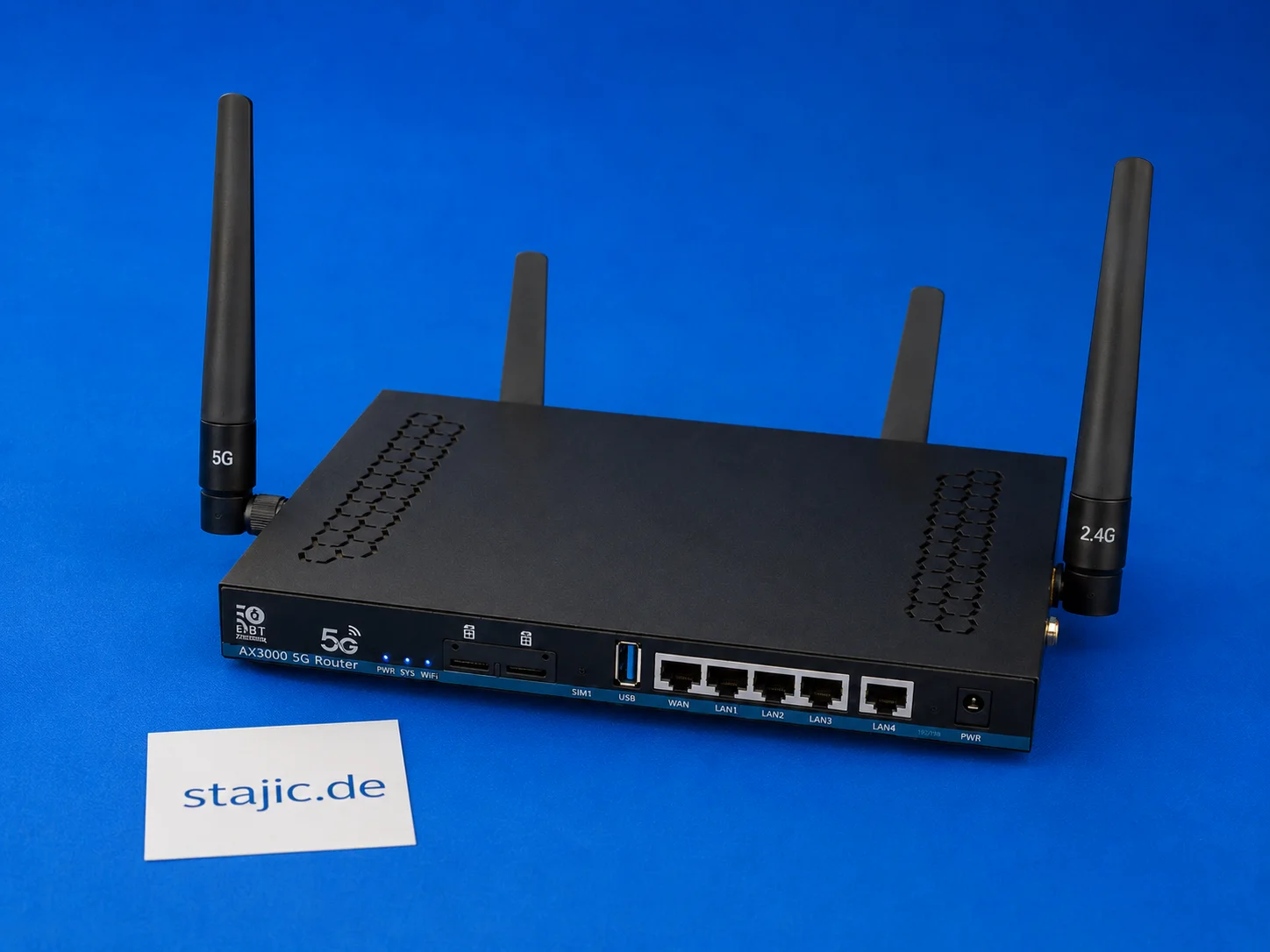
ZBT Z8102AX 双SIM卡故障切换:有效功能、缺失功能及固件需改进之处
ZBT Z8102AX是一款双SIM卡5G OpenWrt路由器,但仅具备双SIM卡硬件并不等同于智能故障切换。该路由器能识别SIM卡并成功连接,但自动切换、调制解调器恢复、基于信号的决策以及清晰的故障切换逻辑仍需更深入的测试。
konvertieren-rpm-in-debian-ubuntu-deb-format-debian-package-manager

从研究协议到通用AI推理框架
为严谨的AI辅助研究而开发的一套方法论,其可推广范围远超研究本身。通过将证据与假设分离、检验相互竞争的假设、控制提示框架、搜寻反证并应用领域特定的验证器,同一推理架构可以改进调试、软件设计、战略、技术分析以及AI辅助决策支持。